Posts

Showing posts with the label outlook

Message stuck in Outbox

Image
In Microsoft Outlook 2010 you may see the message got stuck in your Outbox without the timestamp. This happens when you work offline and then connect to the network. Opening the email from the Outbox and clicking on "Send" does nothing. Of course you can open the unsent email, copy and paste the content into a new email and then send it, but there are more efficient ways: As a workaround you can move the unsent message to the Drafts folder. Then open it and click "Send". Disable or uninstall iCloud add-in Check for the active send delay rule. This may cause the trouble.
Nokia to Samsung phone contacts transfer. How to

Image
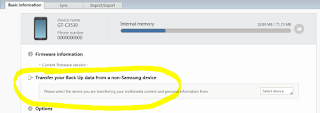
Update from 21/12/2012: A BIG thanks goes to Samsung for their updated Kies v.2.5.1.12123_2. It is now possible to transfer backup data from a non-Samsung device directly from the Kies! You can transfer the data from Nokia, Apple, LG and BlackBerry phones (*.nbu, *.idx and *.bbb files supported). *** It's obvious that the easiest way to transfer contacts from one phone to another is use Bluetooth. (Turn Bluetooth "on" on each device; open contacts; then in options mark all; then in options "send to" via Bluetooth). But in some cases e.g. Nokia C2-01 to Samsung GT-C3530 data transfer it's not possible to send all contacts at once. In this case you'll need Microsoft Outlook, Nokia PC Suite and  SAMSUNG Kies PC Sync . Steps are the following: Start Nokia PC Suite Synchronise your contacts to MS Outlook Connect Samsung phone Start Kies Synchronise contacts from MS Outlook to Kies Sync Kies conatcts with your Samsung phone

Outlook Anywhere grayed out

The Outlook Anywhere feature, formerly known as RPC over HTTP, lets clients that use Microsoft Office Outlook 2010, Outlook 2007, or Outlook 2003 connect to their Exchange servers from outside the corporate network or over the Internet using the RPC over HTTP Windows networking component. If you are unable to select "Connect to Microsoft Exchange using HTTP" checkbox or "Exchange Proxy Settings..." button is grayed out it is most likely that these settings are blocked by group policy (Article 961112 Policy Setting). If you can't change the GPO by yourself there is another option: you can change registry setting. It will be overwritten with the next gpupdate, but at least you can setup your mailbox and start working. So start, regedit and browse to: HKEY_CURRENT_USER\Software\Policies\Microsoft\office\14.0\outlook\RPC and Change ProxyServerFlags  to 1

How to modify (change) multiple Outlook itmes (contacts or appointments) at a time

Question : How can I modify (change) multiple Outlook itmes (contacts or appointments) at a time? Solution : The easiest way to do this is to select an existing view that corresponds to the changing field. For example, if you’re changing the Company field in Contacts, then you’d click By Company in The Current View section of the Navigation Pane. If Outlook doesn’t have a view for the field you want to change, you can create it yourself: Choose View, Current View, Define Views. The Custom View Organizer dialog box displays. Click New. The Create a New View dialog box displays. Use the Name of New View text box to name the view (for example, By Field, where Field is the name of the field you want to modify), make sure Table is selected in the Type of View list, and then click OK. The Customize View dialog box displays. Click Group By to display the Group By dialog box. In the Group Items By list, click the field you want to modify. Click OK to return to the Customize View dial...

How to remove shared Outlook folder

Problem : When trying to close shared Outlook mail folder the following error appears: "This group of folders is associated with an e-mail account. To remove it, on the Tools menu, click E-mail accounts, select View or change e-mail accounts, click Next, and then click Remove" or "This group of folders is associated with a mail account. To remove it use the 'E-mail Accounts' command on the Tools menu." Solution : Open the registry editor, and go to: HKCU\Software\Microsoft\Windows NT\CurrentVersion\Windows Messaging Subsystem\Profiles\Default Look through each of the folders below that to find which ones is causing the particular mailbox to be opened, then delete that whole folder This issue has been seen in Microsoft Outlook 2007 and Outlook 2010 N.B.:  Sometimes your AD schema may still contain the additional mailboxes info and that result in recreating registry records when Outlook restarts. If this is the case go into ADSIEdit.msc and drill d...

Macros to send all emails from Drafts folder at once in Outlook

There is sometimes a need to send all draft emails at once. To do this: Start Outlook and choose Tools, Macro, Visual Basic Editor (or press Alt+F11) to open the VBA Editor. In the Project window, select Project1 and expand the tree until you see ThisOutlookSession. Select ThisOutlookSession and press F7 to open the Code window. Enter the following in the Code window: Public Sub SendDrafts() Dim lDraftItem As Long Dim myOutlook As Outlook.Application Dim myNameSpace As Outlook.NameSpace Dim myFolders As Outlook.Folders Dim myDraftsFolder As Outlook.MAPIFolder 'Send all items in the "Drafts" folder that have a "To" address filled in. 'Setup Outlook Set myOutlook = Outlook.Application Set myNameSpace = myOutlook.GetNamespace("MAPI") Set myFolders = myNameSpace.Folders 'Set Draft Folder. This will need modification based on where it's being run. Set myDraftsFolder = myFolders("Personal Folders").Folders(...

VBA script to modify all Outlook Calendar items

Using the script below you may automate the process of putting birthdays in your calendar. This is the 2 step process. First - you import your birthdays list from .xls file to Outlook calendar and second - you run the script to make all appointments to be recurring. So this script will modify all (multiple) Outlook Calendar items to be rucurring yearly: Sub replacement()  Dim Ns As NameSpace  Dim MyCalendar As MAPIFolder  Dim Item As Object  Set Ns = GetNamespace("MAPI")  Set MyCalendar = Ns.GetDefaultFolder(olFolderCalendar)  Set srtitems = MyCalendar.Items     For Each Item In srtitems  DoEvents    Set myRecurrPatt = Item.GetRecurrencePattern     myRecurrPatt.RecurrenceType = olRecursYearly     Item.Save  Next End Sub

Create Outlook calendar item with Python

I've created this script when I needed to keep track of my street workout performance. I was needed to have a reminder for each day that will tell me how much repetitions I should do today. So this script will create a bunch of Microsoft Outlook appointments in your calendar according to the "table" dictionary. The table is reduced for this example. It is easier to create such table in MS Excel, then convert it to text and paste into your favourite Python IDE. Please note that this code is using PyWin32 library. def addevent(start, subject):     import win32com.client     oOutlook = win32com.client.Dispatch("Outlook.Application")     appointment = oOutlook.CreateItem(1) # 1=outlook appointment item     appointment.Start = start     appointment.Subject = subject     appointment.Duration = 20     appointment.Location = 'Sprortground'     appointment.ReminderSet = True     appo...